
EasyRoutes + WooCommerce Integration
The WooCommerce integration is available in EasyRoutes for Web, and is not currently available on EasyRoutes for Shopify. If you use EasyRoutes for Shopify, you can still bring in WooCommerce orders via a CSV file import, Zapier automation, or API integration: see Importing orders from WooCommerce for more details.
Overview
The WooCommerce integration turns orders from your WooCommerce store into EasyRoutes stops automatically. When EasyRoutes applies new delivery statuses to synced stops, it reports progress back to the order in WooCommerce.
- Into EasyRoutes: new and updated WooCommerce orders in the statuses you choose become stops, along with any custom fields added at checkout or manually by a store admin, ready to add to any route in EasyRoutes. You can also import orders from the last 30, 60 or 90 days.
- Back to WooCommerce: EasyRoutes adds a private order note at each delivery milestone, with the customer’s tracking link when the order is ready for delivery and proof of delivery once it’s delivered. It can also update orders to the Completed status in WooCommerce when they’re marked as delivered in EasyRoutes.
- Changes stay in sync: edits to an order in WooCommerce update its stop in EasyRoutes. Trashing an order keeps its stop and marks it as trashed; permanently deleting the order removes the stop.
You can connect up to 20 WooCommerce stores to one EasyRoutes account.
Before you start
You need four things to connect a store:
- An EasyRoutes for Web account. The integration isn’t currently available in EasyRoutes for Shopify.
- Administrator access to your WordPress site, or a role that can manage WooCommerce settings. Only these roles can approve EasyRoutes or create API keys.
- A store served over https. WooCommerce only accepts API keys over a secure connection, so EasyRoutes can't connect to a store on plain http.
- A store EasyRoutes can reach from the internet. Stores on a local computer, or behind a password, firewall or maintenance-mode plugin, can't connect.
- WooCommerce installed at the root of your domain, such as
https://shop.example.com. EasyRoutes connects using only the domain, so a store installed in a sub-folder such ashttps://example.com/shopisn't currently supported.
Before you start, make sure your WordPress permalinks are set to anything other than Plain (Settings → Permalinks). The WooCommerce REST API needs this.
Connect your store
There are two ways to connect. In the EasyRoutes web app you can authorize EasyRoutes directly from your EasyRoutes settings, which is the quickest option; you can also integrate by manually entering WooCommerce API keys if there's a particular set of keys you want to use to drive this integration.
Option A: Authorize EasyRoutes
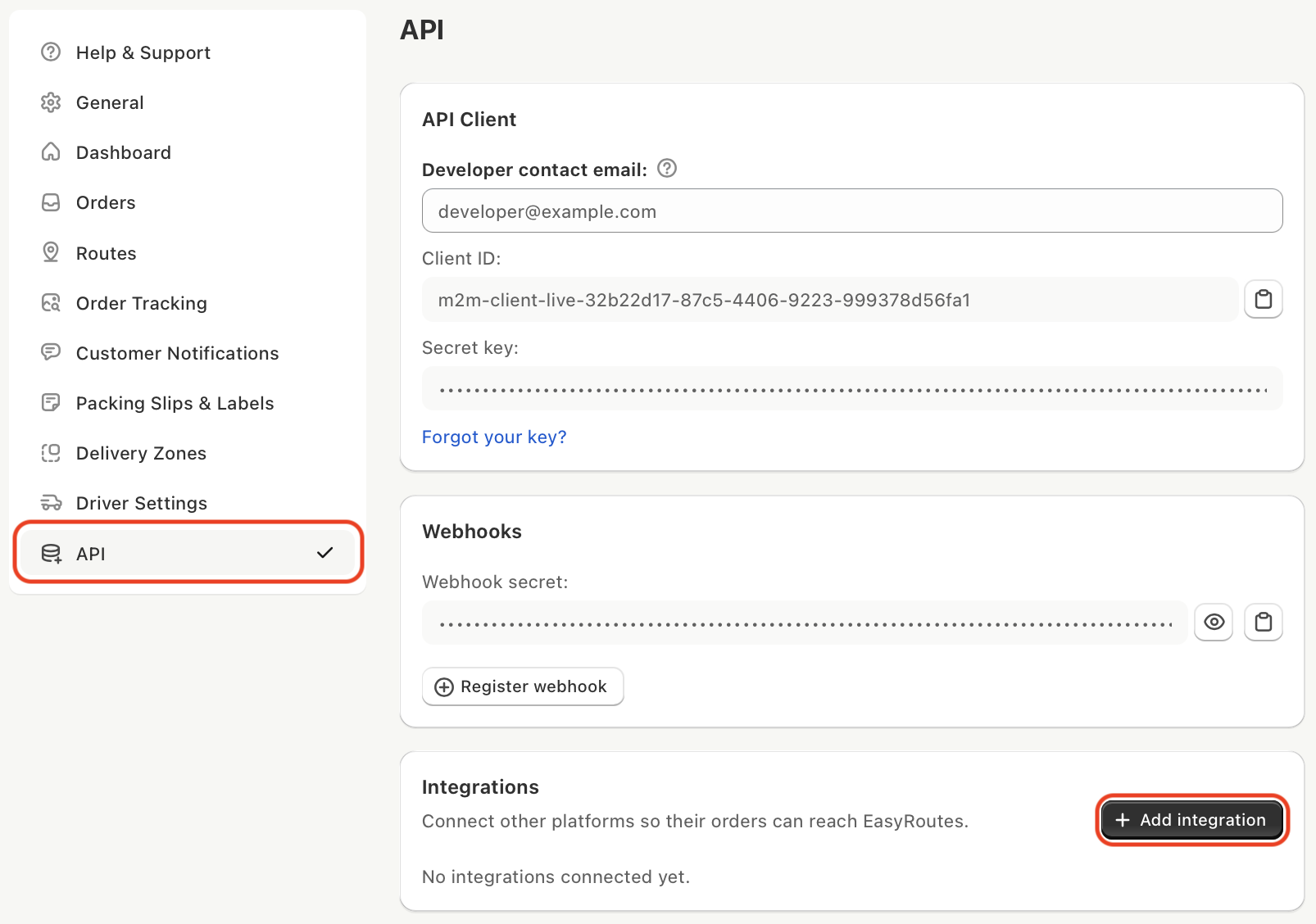
- From your EasyRoutes Settings > API tab, access the Integrations panel, and click Add integration:
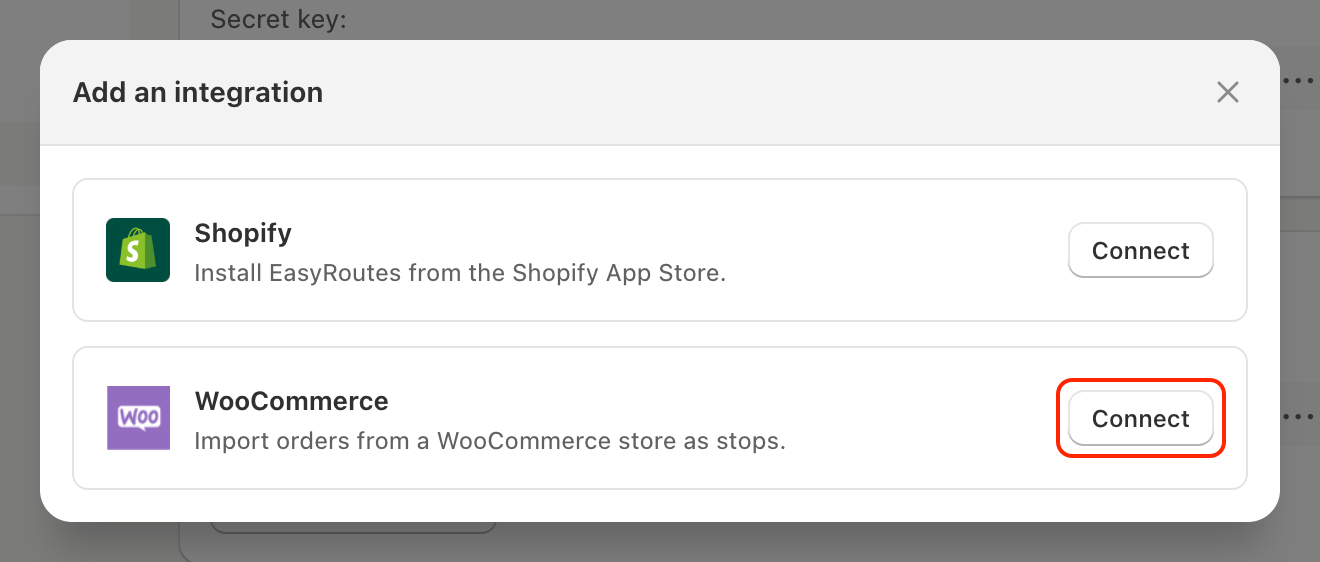
- Click the Connect button on the WooCommerce card:
- Enter your Store URL, for example
https://shop.example.com. - Choose your import settings: which order statuses to import, and what EasyRoutes does when a stop's status changes. See Import settings below for more details:
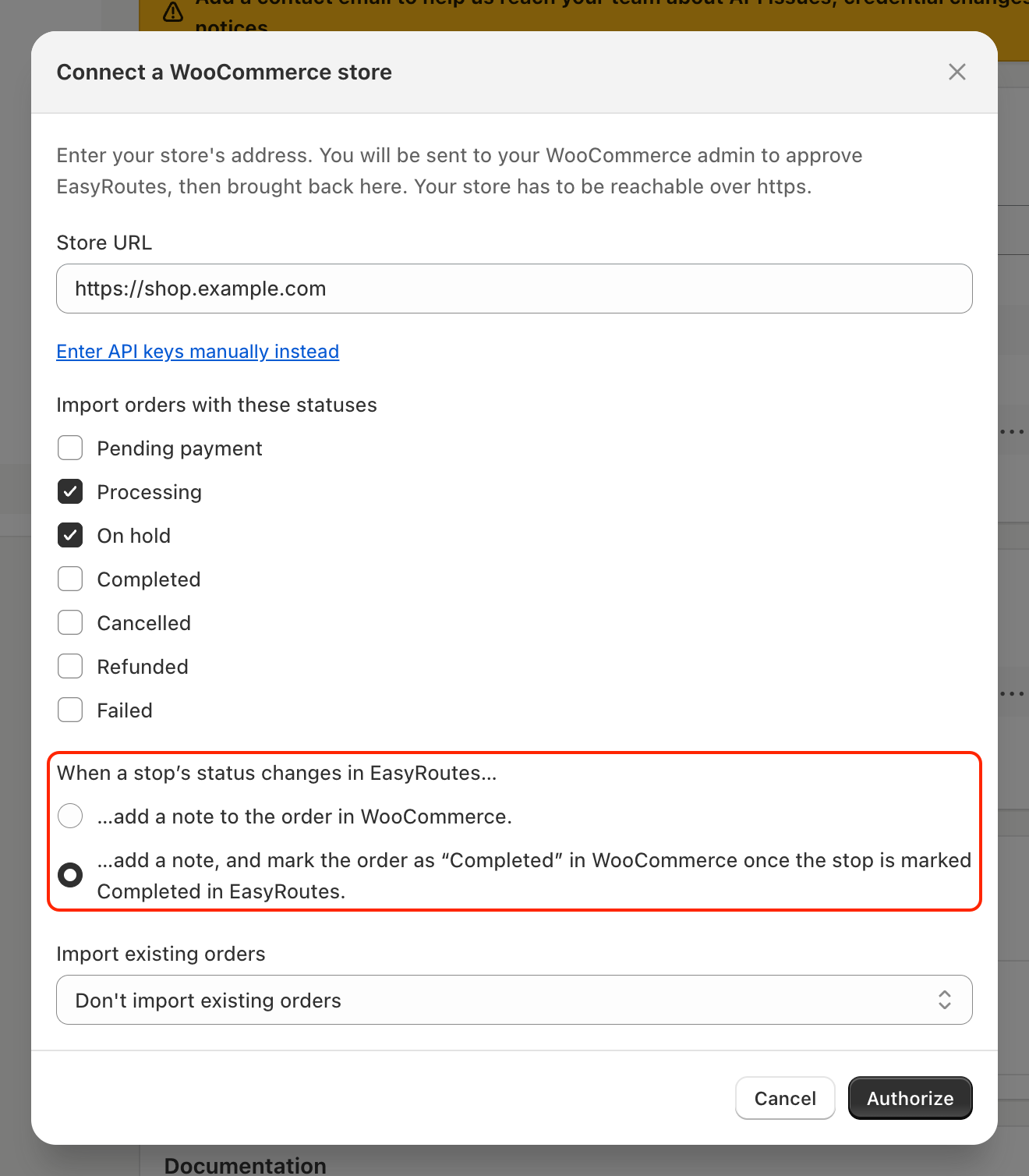
- Under Import existing orders, choose how far back to import: Don't import existing orders, or the last 30, 60 or 90 days.
- Click Authorize. You'll be taken to your WooCommerce admin. Sign in if prompted.
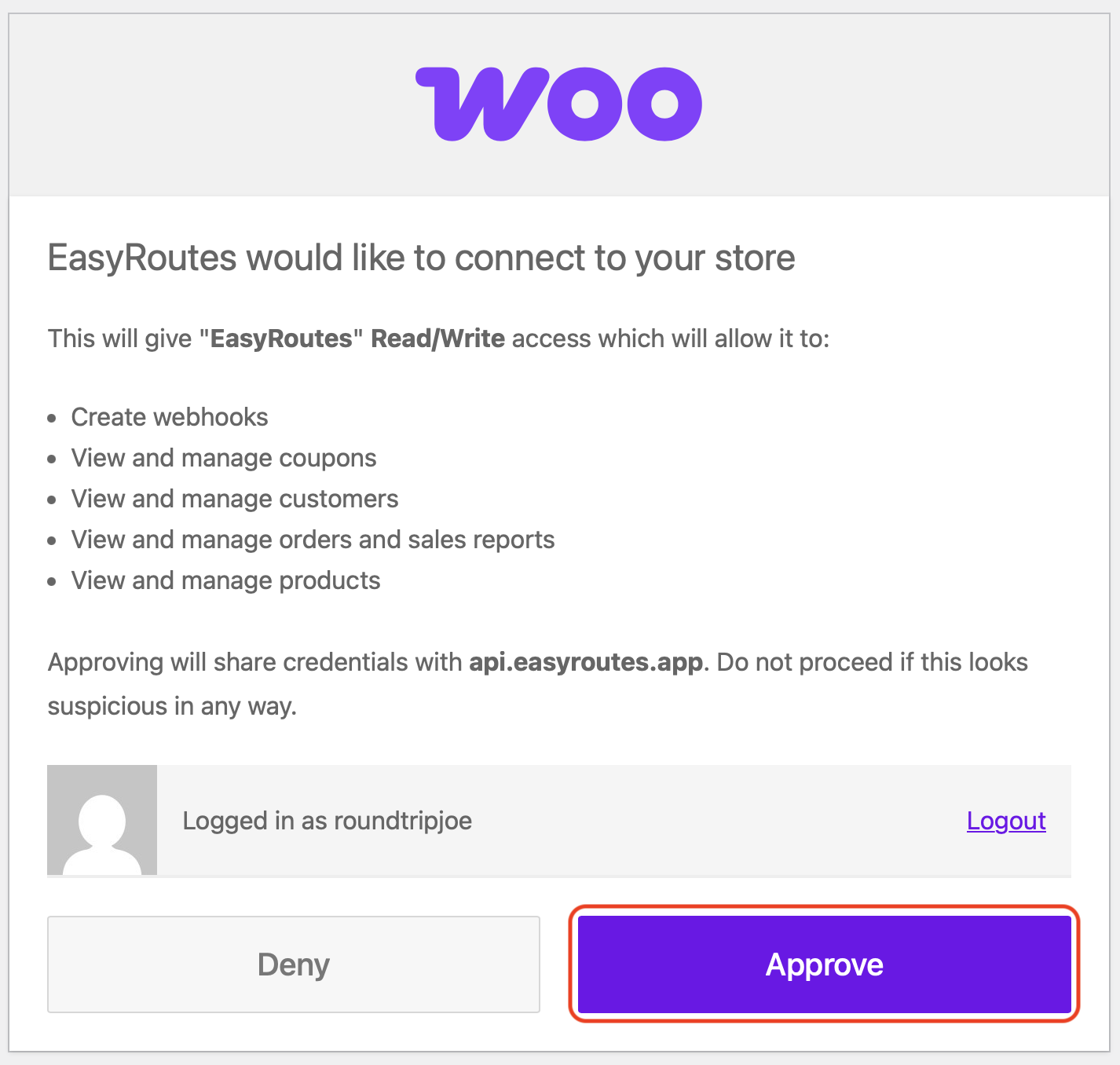
- WooCommerce asks you to approve EasyRoutes with Read/Write access. Click Approve:
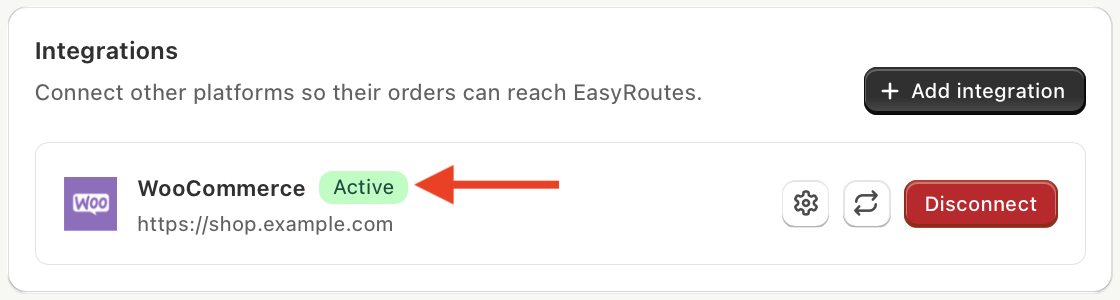
- You'll be returned to EasyRoutes. Your connected store appears with an Active badge:
Option B: Enter API keys manually
First, create a key in WooCommerce:
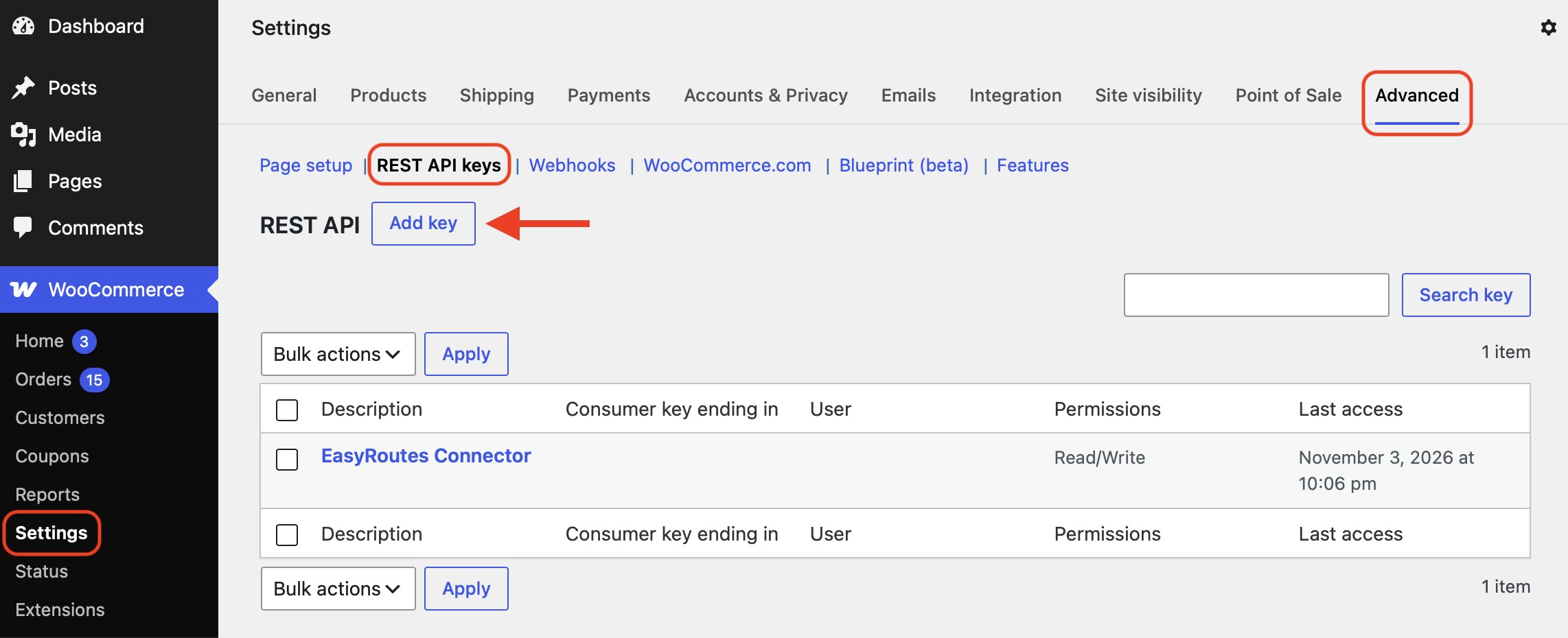
- In your WordPress admin, go to WooCommerce → Settings → Advanced → REST API keys.
- Click the Add key button:
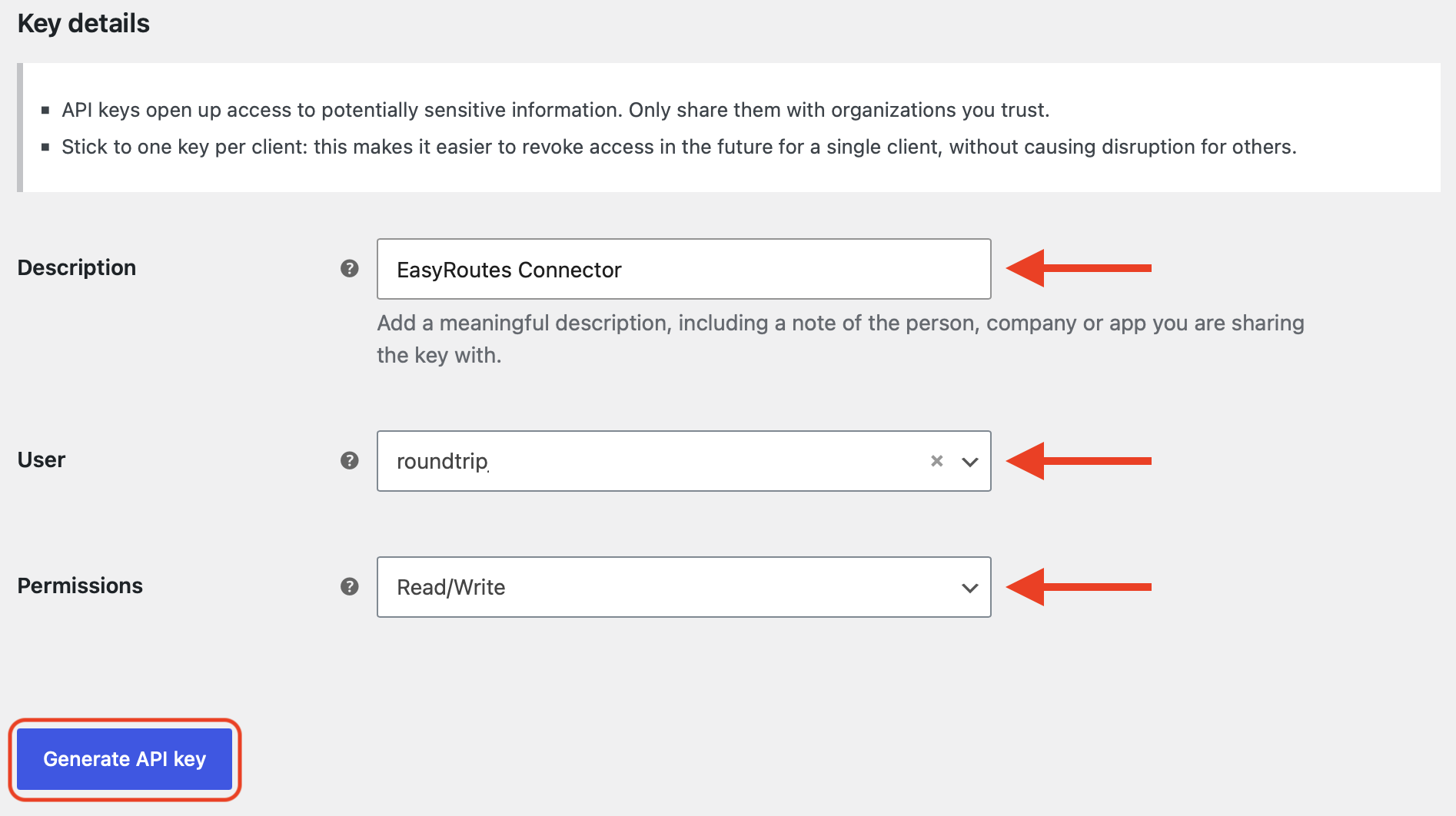
- Enter a Description, such as
EasyRoutes Connector. - Choose the User the key acts as: an administrator or shop manager.
- Set Permissions to Read/Write.
- Click the Generate API key button:
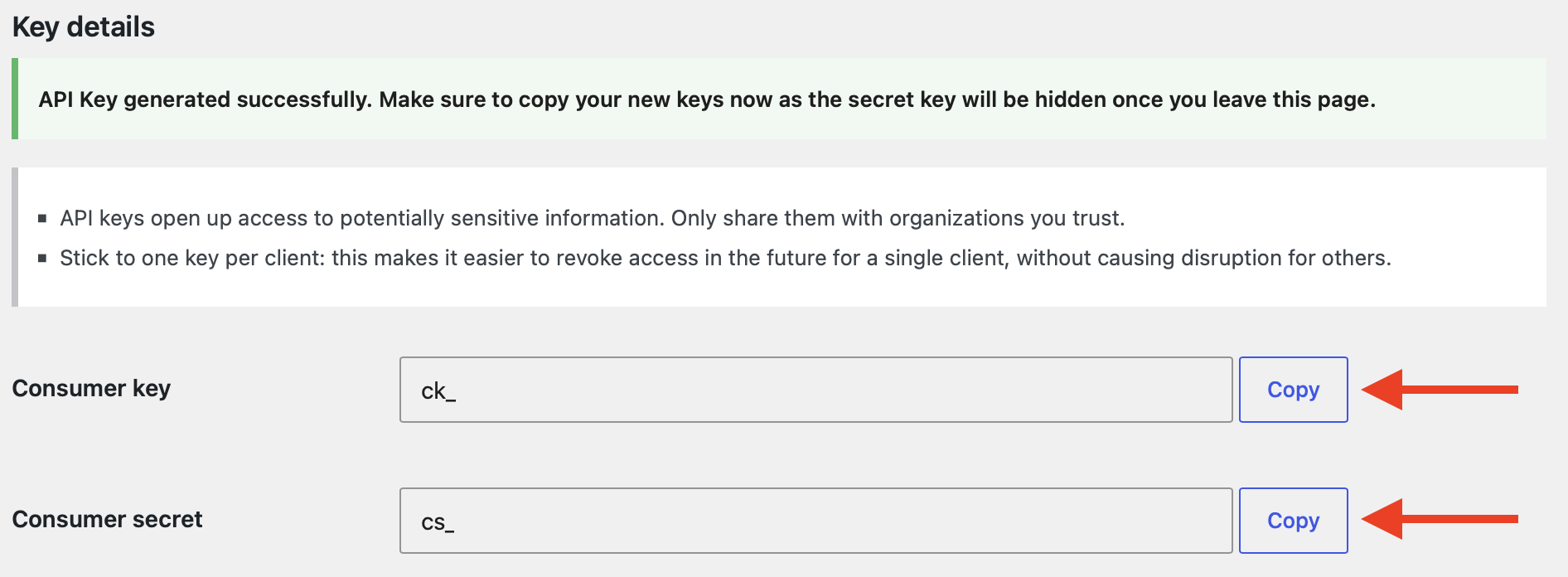
- Copy the Consumer key (starts with
ck_) and Consumer secret (starts withcs_). WooCommerce only shows the secret once; we recommend copying both values using the provided buttons & saving them in a secure location for future reference:
Then connect in EasyRoutes:
- From your EasyRoutes Settings > API tab, access the Integrations panel, and click Add integration:
- Click the Connect button on the WooCommerce card:
- Click Enter API keys manually instead:
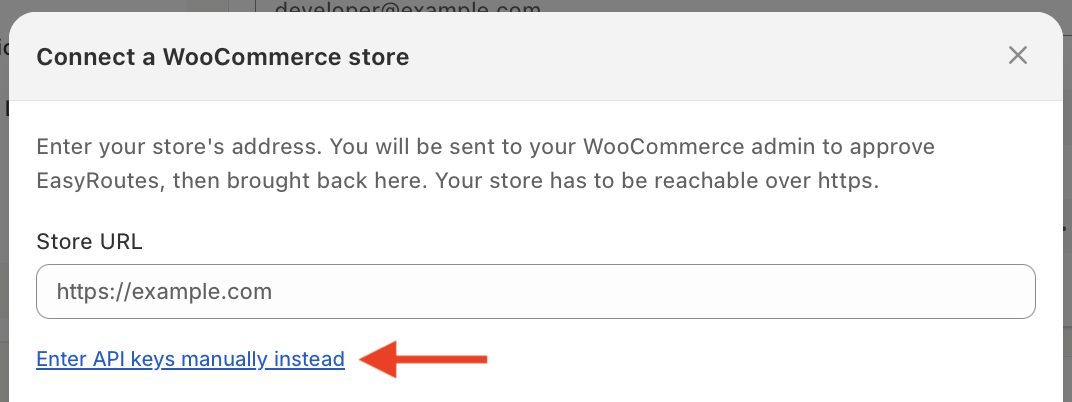
- Enter your Store URL, Consumer key and Consumer secret as configured above in WooCommerce.
- Choose your import settings: which order statuses to import, and what EasyRoutes does when a stop's status changes. See Import settings below for more details:
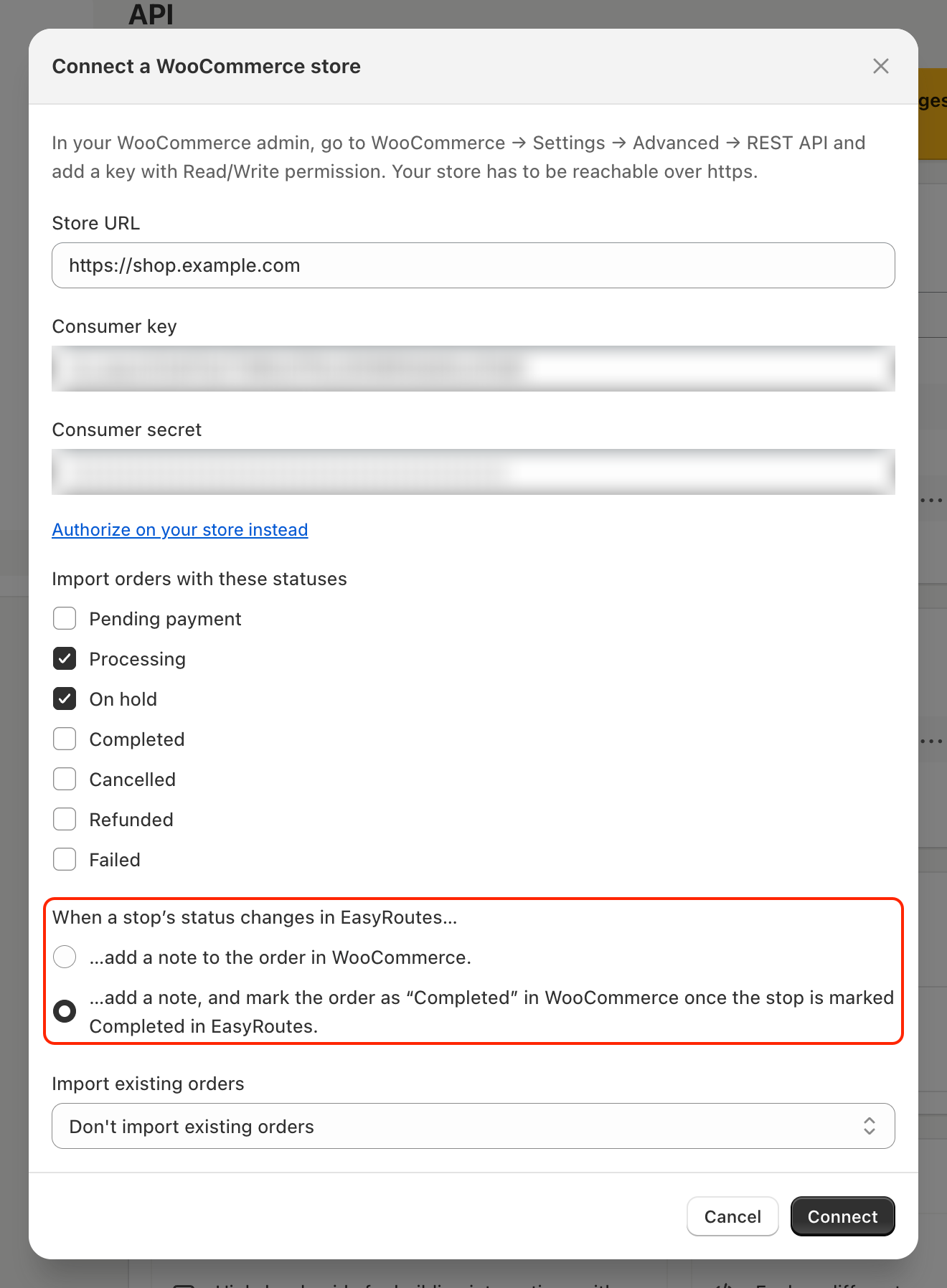
- Under Import existing orders, choose how far back to import: Don't import existing orders, or the last 30, 60 or 90 days:
- Click the Connect button. Your connected store appears with an Active badge:
Import settings
The connect window contains three sets of settings, all required to complete the connection. You can change any of them later on from the integration's Settings (gear icon) button, or sync older orders using the Refresh icon:
- Import orders with these statuses. Select one or more of WooCommerce's order statuses: Pending payment, Processing, On hold, Completed, Cancelled, Refunded and Failed. Only orders matching any selected status(es) become stops. In most store setups, Processing means the order is paid and waiting to be delivered.
- If you select all seven, EasyRoutes also imports orders in custom statuses added by other plugins. If you select fewer, orders in custom statuses are skipped.
- When a stop's status changes… Choose what EasyRoutes writes back to the order:
- …add a note to the order in WooCommerce: adds a private order note (visible to store admins, not customers) each time the stop’s delivery status changes in EasyRoutes.
- …add a note, and mark the order as “Completed” in WooCommerce once the stop is marked Completed in EasyRoutes: adds the same notes, and changes the order’s status to Completed in WooCommerce when the stop is completed in EasyRoutes. The order’s status doesn’t change before then.
- Import existing orders: Choose how far back orders imported into EasyRoutes should be from - last 30 days, 60 days, or 90 days; you can also choose not to sync old orders at this time. New WooCommerce orders created after the integration is activated will sync with any of these options selected.
Find more details on all of these settings in the sections below.
After you connect
If you chose to import existing orders, a message confirms that EasyRoutes is syncing orders from the period you picked. Only orders in the statuses you selected are imported.
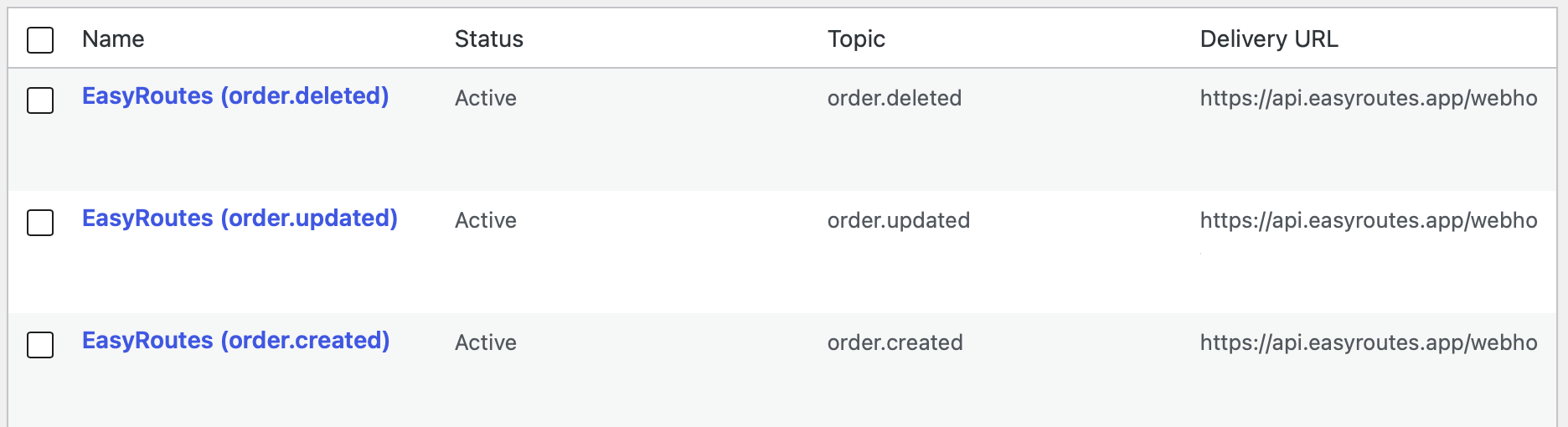
EasyRoutes also creates three webhooks in your WooCommerce store, named EasyRoutes (order.created), EasyRoutes (order.updated) and EasyRoutes (order.deleted). You can see them under WooCommerce → Settings → Advanced → Webhooks. Don't delete or pause them: they're how EasyRoutes learns about new orders:
How orders reach EasyRoutes
Each time an order is created or changed, WooCommerce notifies EasyRoutes. About 10 seconds later, EasyRoutes reads the order's current details from your store and creates or updates its stop. Stops are tagged WooCommerce so you can quickly filter for them.
Every change to an order in a selected status flows into EasyRoutes, and each delivery milestone flows back to the order as a private note.
- Sync Timing: Most orders generally appear within a minute or two, often within 10-15 seconds. WooCommerce sends its notifications from a background queue, and that queue runs when your site has visitors or a server cron job. On a quiet site with no server cron, notifications can arrive late.
- Which orders import: Only orders in the statuses you selected in the store's settings are imported. Orders in the Trash and checkout drafts never import. Checkout drafts are carts the block checkout saves before payment. Each stop shows the order's status in the WooCommerce Status attribute. That value updates when the order changes, as long as the order stays in a selected status or moves to the Trash.
- Which orders are skipped. Orders without a shipping address (Address line 1) are skipped, for example orders for virtual or downloadable products. EasyRoutes uses only the shipping address, never the billing address.
- Importing past orders. When you connect, you can import orders created in the last 30, 60 or 90 days. You can do the same later from your EasyRoutes Settings > API tab, with the WooCommerce integration's Sync orders button (the refresh icon). Only orders in your selected statuses are imported. Past orders import in the background, behind new orders, so a large import can take a while. Running a sync again updates stops that already exist rather than duplicating them.
What each stop contains
| EasyRoutes field | Comes from in WooCommerce | Notes |
|---|---|---|
| Order name | Order number | Shown as #1234 |
| Order reference URL | The order’s edit page in your WooCommerce admin | Click the order name on the EasyRoutes Orders page or any route to open the order in WooCommerce. You need to be signed in to WordPress |
| Address | Shipping address | Address lines 1–2, city, state/province, postcode and country |
| First and last name | Shipping name | Falls back to the billing name when the shipping name is blank |
| Company | Shipping company |
|
| Phone | Shipping phone | Falls back to the billing phone. Dropped if it isn't a valid number for the shipping country |
| Billing email | Dropped if it isn't a valid address | |
| Note | Customer-provided note | The note the customer typed at checkout |
| Items | Line items | Name, quantity and SKU of each product |
| Tag | Always WooCommerce |
|
| Attribute: 'WooCommerce Status' | Order status | For example processing or on-hold |
| Attribute: 'WooCommerce Host' | Your store’s domain | For example shop.example.com. Tells stops from different stores apart |
| Attribute(s): Custom field names/values | The order’s custom fields | Each available custom field becomes an EasyRoutes stop attribute, with the same name and value. See WooCommerce Custom Fields below for more details. |
EasyRoutes doesn’t currently import prices, totals, payment method, shipping method, coupons, product weights, or order notes you add in the WooCommerce admin.
WooCommerce Custom Fields
Custom fields on an order, such as a delivery date, time slot or gift message added by a checkout plugin, come into EasyRoutes as stop attributes, using the field’s name as the attribute name. EasyRoutes leaves out:
- Hidden fields, whose names start with an underscore (_). WooCommerce and many plugins use these for internal data.
- Empty fields, and fields that hold structured data rather than text.
Each synced attribute can be enabled as an individual column on the EasyRoutes Orders page using the Configure Table Columns tool. Attributes also display prominently within any stop's Edit stop panel, where they can be manually edited or removed if desired:
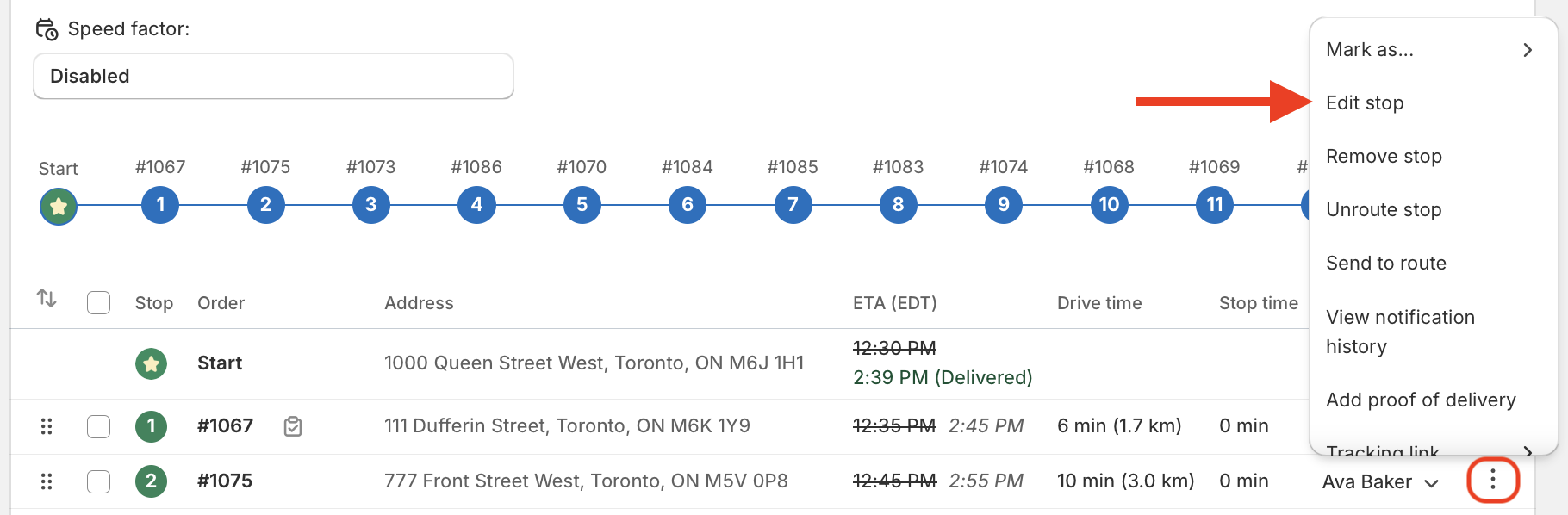
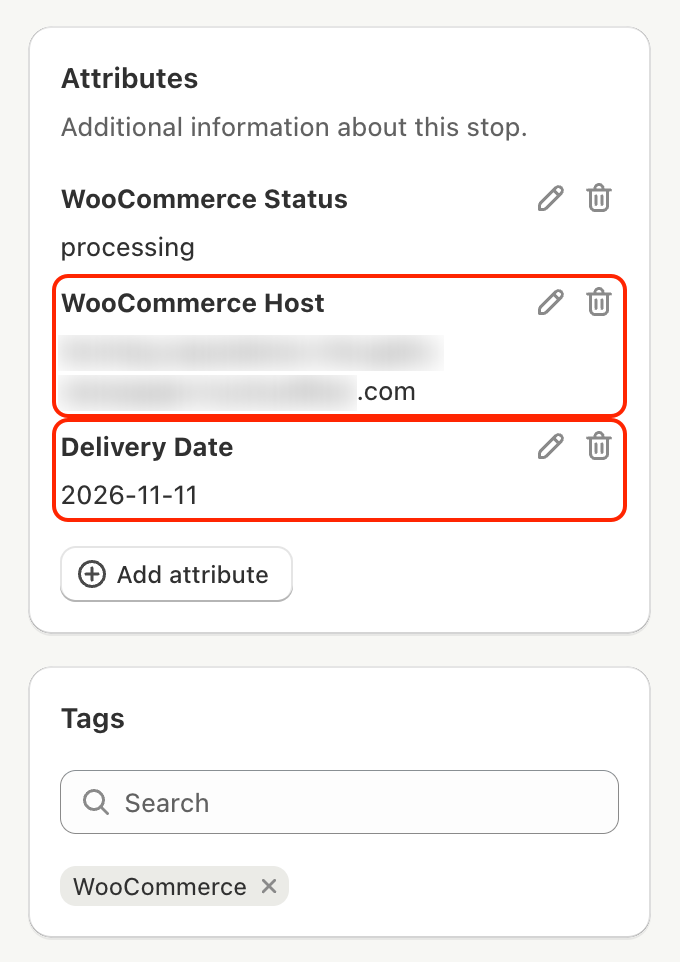
Each stop holds up to 50 attributes, including WooCommerce Status and WooCommerce Host, so EasyRoutes imports up to 48 custom fields per order. Names longer than 50 characters and values longer than 500 characters are shortened.
Custom fields are imported as attributes only, and can be used as order filter values in EasyRoutes, or used to configure a Saved View or Autopilot workflow for recurring route planning.
What EasyRoutes writes back to WooCommerce
When a stop's delivery status changes, EasyRoutes adds a private order note to the WooCommerce order. Private notes appear only in your admin; WooCommerce doesn't email or display them to the customer.
| Stop status in EasyRoutes | Note added to the order |
|---|---|
| Ready for delivery | EasyRoutes: Ready for delivery, followed by the EasyRoutes Tracking Link (if available) to the customer’s tracking page |
| Out for delivery | EasyRoutes: Out for delivery |
| Delivered | EasyRoutes: Delivered, followed by links to each EasyRoutes Delivery Photo, the EasyRoutes Delivery Signature and the EasyRoutes Delivery Note (each when available) |
| Delivery attempted | EasyRoutes: Delivery attempted |
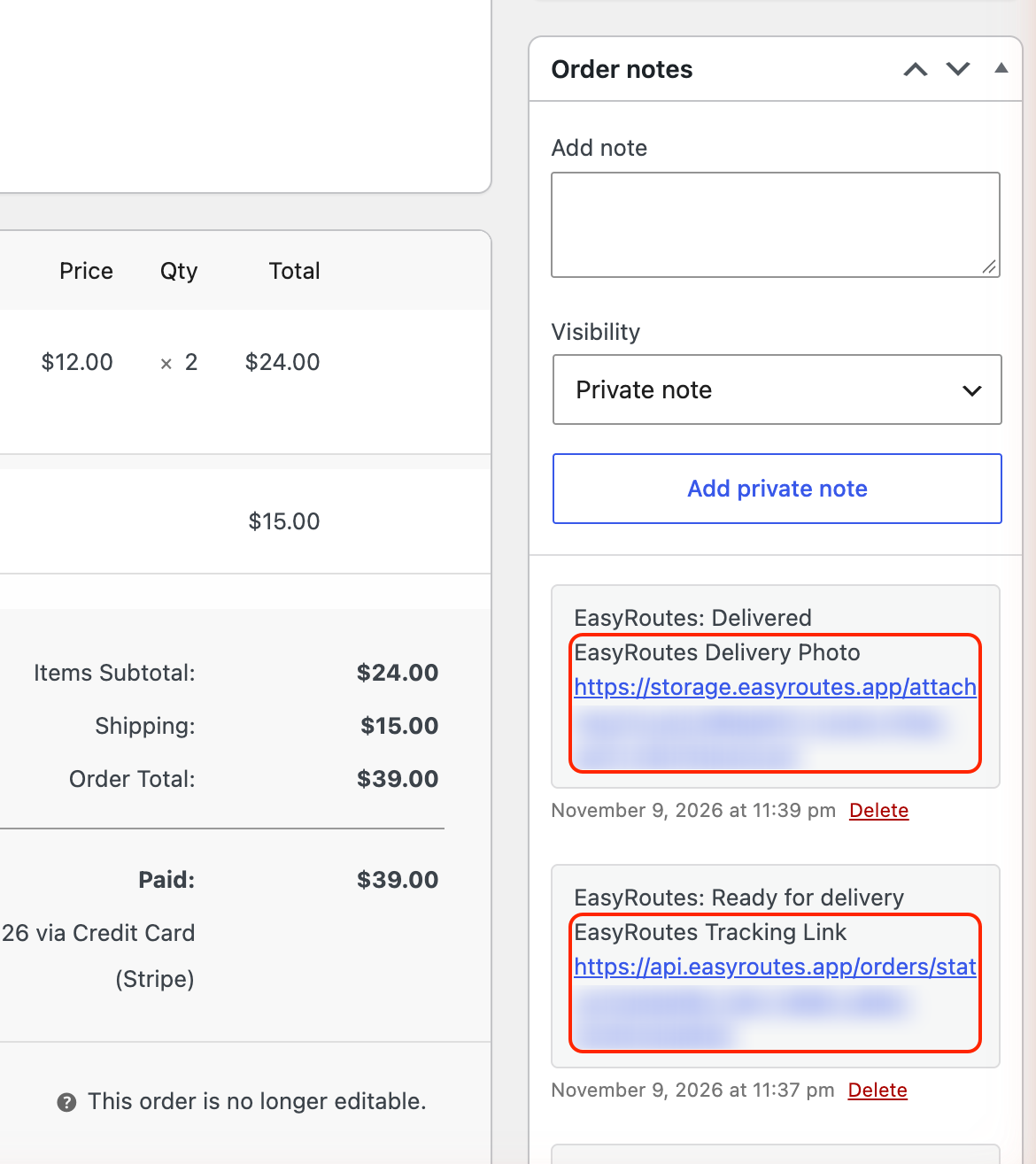
The tracking link and proof of delivery follow your EasyRoutes settings. The tracking link appears only when customer tracking is turned on, and proof of delivery photos, signatures and delivery notes appear any time the driver captures them for a stop; anything the driver didn’t capture is left out.
If you chose Add a note and mark the order as “Completed”, EasyRoutes also changes the order's status to Completed when its stop is marked Delivered. WooCommerce then sends its normal Completed order email to the customer, if that email is turned on under WooCommerce → Settings → Emails.
This is the only thing EasyRoutes changes in your store, apart from the three webhooks it creates when you connect. It never edits addresses, items, customers or payments.
When orders change in WooCommerce
WooCommerce is the source of truth. Each time an order changes there, EasyRoutes reads the whole order again and updates the stop to match.
| WooCommerce Action | What happens in EasyRoutes |
|---|---|
| Edit the shipping address, name, phone, items or customer note | The stop updates to match |
| Change the order status to another selected status | The stop stays. Its WooCommerce Status updates |
| Change the order status to one you didn't select | The stop stays as it was. It stops updating, including its WooCommerce Status, until the order moves back to a selected status |
| Change the order status from one you didn't select to one you did, such as Pending payment to Processing | A stop is created |
| Remove the shipping address | The stop is left as it was; EasyRoutes doesn't update it |
| Move the order to the Trash | The stop stays on your Orders page and on any route it’s on. Its WooCommerce Status changes to trash |
| Restore the order from the Trash | The stop updates the next time the order changes. Click Sync orders from the Integrations configuration panel to update it immediately |
| Permanently delete the order | The stop is deleted |
Stops aren't removed when an order is cancelled or refunded. If Cancelled and Refunded are among your selected statuses, the stop's WooCommerce Status changes to show it. If they aren't, the stop stops updating and still shows the earlier status. If you don’t need the stop, delete it in EasyRoutes.
If an order is moved to the Trash in WooCommerce after its stop is added to a route, the stop stays on the route and on your Orders page, and you can keep updating it as usual. Status changes still sync back to the order. If you chose to mark orders Completed, completing the stop moves the order out of the Trash in WooCommerce and marks it Completed.
Changes you make to a stop in EasyRoutes aren't sent back to WooCommerce. The next time the order changes in WooCommerce, EasyRoutes overwrites the stop with the order's details. Make lasting changes, such as a corrected address, in WooCommerce.
Disconnect or reconnect a store
To disconnect:
From your EasyRoutes Settings > API tab, within the Integrations section, click Disconnect on the store, and confirm. EasyRoutes stops receiving orders and removes its webhooks from your store. Stops already imported stay in EasyRoutes.
Disconnecting doesn't delete the API key in WooCommerce. If you no longer need it, revoke it under WooCommerce → Settings → Advanced → REST API keys. If you used the Authorize option to set this up, the key's description starts with EasyRoutes.
To reconnect the same store:
Connect it again with the same Store URL. EasyRoutes recognizes it and updates the stops it imported before, instead of creating duplicates.
- To use new API keys: disconnect the store, then connect it again with the new keys. You can't edit the keys on an existing connection.
- If your store moves to a new domain: connect the new address as a new store. Stops imported under the old address won't be linked to the new connection.
FAQs
Can I use the WooCommerce integration with EasyRoutes for Shopify?
No. The integration is available in EasyRoutes for Web only.
Why does EasyRoutes need Read/Write access?
Read access lets EasyRoutes read your orders. Write access lets it create the webhooks that notify it of new orders, add delivery notes, and mark orders Completed if you turn that on. EasyRoutes can't connect with a Read-only key.
Will my customers be notified when EasyRoutes adds a note?
No. EasyRoutes adds private notes, which only you and your staff see. Customers get an email only if you turn on auto-complete and WooCommerce's Completed order email is enabled.
Can I connect more than one WooCommerce store?
Yes, up to 20 stores per EasyRoutes account. Each store has its own settings, so stores can import different statuses, or you can auto-complete orders for one store and only add notes for another.
Can I connect a store that already has orders?
Yes. When you connect, choose to import orders created in the last 30, 60 or 90 days. Older orders can't be imported.
Do I have to re-import orders after editing them?
No. Every change to an order in WooCommerce updates its stop automatically, as long as the order is in a selected status.
Why did a cancelled order still appear in EasyRoutes?
Either Cancelled is one of the store's selected statuses, or the order was imported in a selected status and cancelled later. Stops aren’t removed when an order is cancelled. Delete the stop in EasyRoutes if you don’t need it, and consider unchecking the Cancelled status from the WooCommerce integration's configuration to avoid importing any future cancelled orders.
Can I choose which orders import, for example only Processing orders?
Yes. Click the store's Settings (gear) button and select only the statuses you want under Import orders with these statuses. Orders still need a shipping address to import.
What happens to existing stops when I change the selected statuses?
Nothing right away. The new selection applies the next time each order is created or changed, and stops aren't removed when you deselect a status. To import recent orders in a status you just selected, click Sync orders.
Does it work with local pickup orders?
It depends on whether the order has a shipping address. Orders without one are skipped. Some checkouts save the pickup location's address as the shipping address, and those orders import as stops at that address.
Does it import custom fields, prices or product weights?
It imports custom fields as stop attributes (see WooCommerce Custom Fields above), but not prices, totals or product weights. Each stop gets the order number, shipping address, contact details, customer note, custom fields, and each item’s name, quantity and SKU.
Does EasyRoutes work with HPOS (High-Performance Order Storage)?
The integration uses the standard WooCommerce REST API and webhooks, which work the same with or without HPOS.
What happens if my store goes offline?
EasyRoutes keeps retrying for about three hours. Changes made after that are picked up the next time the order changes. To fill a longer gap, use Sync orders. Your store shows Needs attention in EasyRoutes while it can't be reached.
Will delivery dates from my checkout plugin set the stop’s delivery date?
Not automatically. They come in as attributes on the stop, under the name the plugin gives them, but don’t set the stop’s Delivery date or Time window.
How do I open a WooCommerce order from EasyRoutes?
Click the order name on the Orders page or a route. It opens the order’s edit page in your WooCommerce admin.
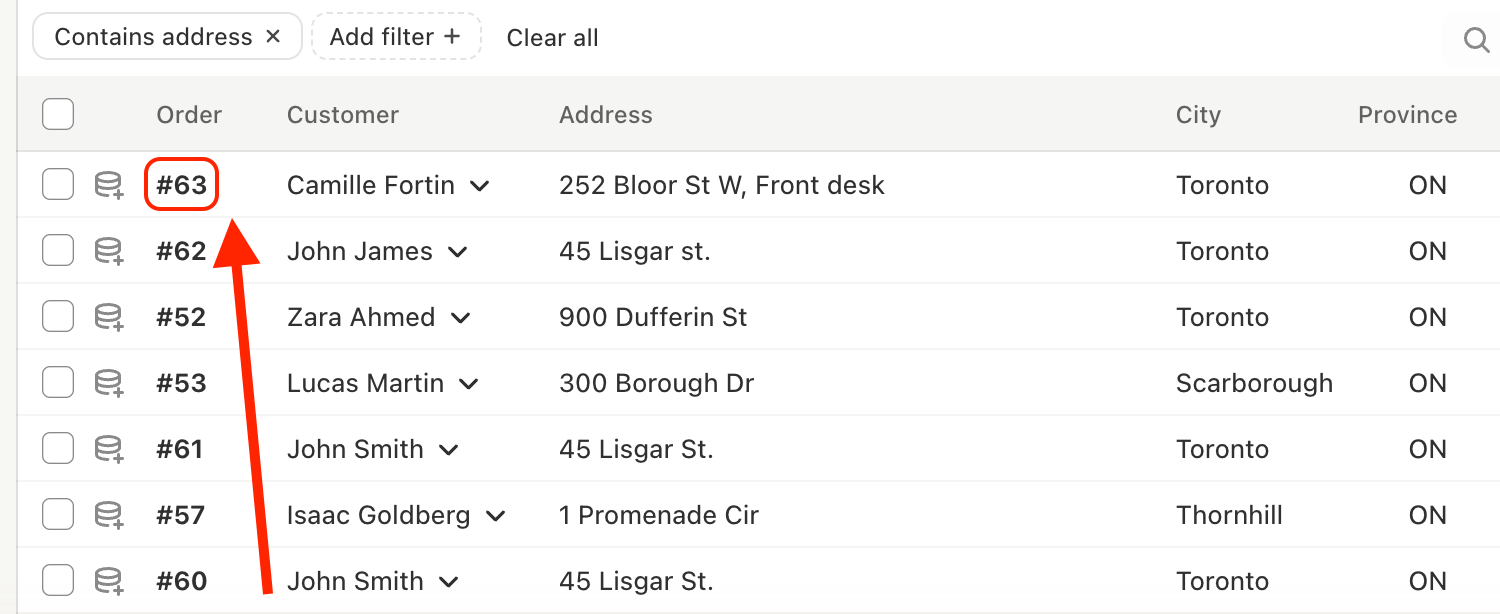
How can I tell which store a stop came from?
Each stop has a WooCommerce Host attribute with the store’s domain, such as shop.example.com.
Troubleshooting
My store shows “Needs attention”
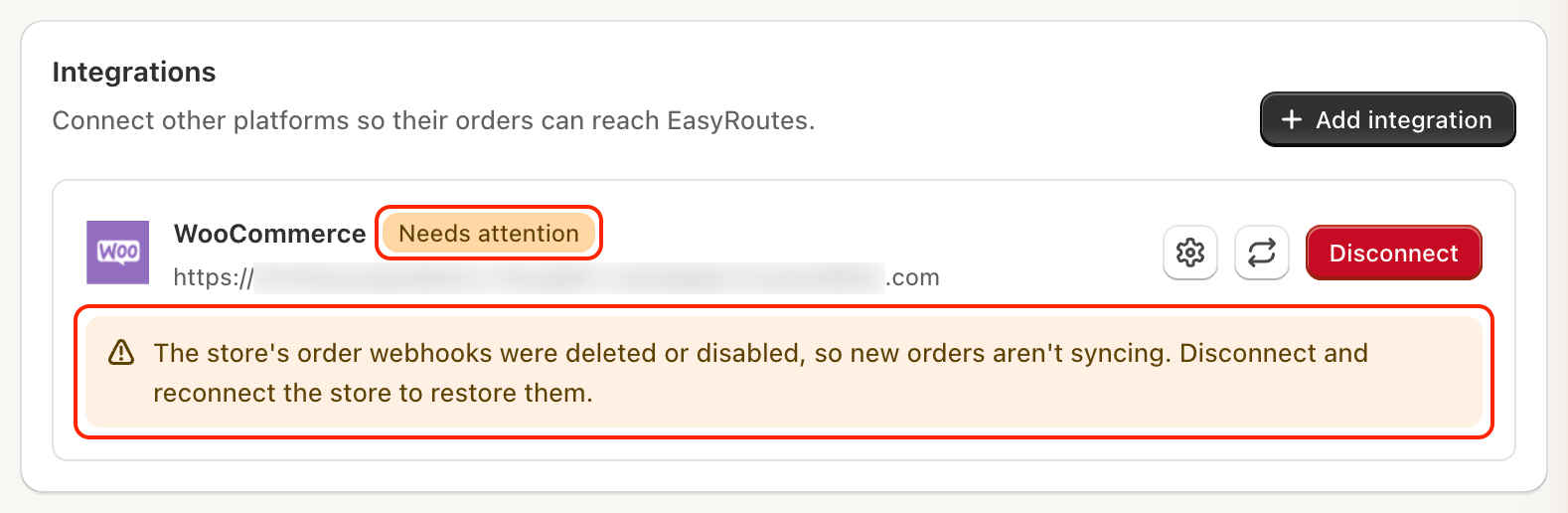
EasyRoutes checks each store every time you open your EasyRoutes Settings > Integrations tab. When a store shows Needs attention, a message under it explains what’s wrong:
| Message | How to fix it |
|---|---|
| The store’s order webhooks were deleted or disabled, so new orders aren’t syncing. | Disconnect and reconnect the store to recreate them. WooCommerce disables a webhook on its own after repeated delivery failures, so also check that the site has been reachable |
| The store rejected our API keys, usually because they were revoked. | Disconnect and reconnect the store. If you connected with API keys, create a new Read/Write key first |
| We couldn’t reach the store. | Check that the site is online and not blocked by a firewall, security plugin or maintenance mode, then refresh the page |
| We couldn’t check this connection. | Refresh the page. If the message stays, disconnect and reconnect the store, or contact our support team |
Errors when connecting
| Message or symptom | What to do |
|---|---|
| “Consumer keys are ck_ and 40 hexadecimal characters” (or the same for secrets) | Copy the key again with no spaces or missing characters. Check that the key and secret aren't swapped |
| Store URL rejected | Enter the full address starting with https:// |
| “Could not read orders from the store” | Check the key and secret, that the key's user is an administrator or shop manager, and that permalinks aren't set to Plain |
| “Could not subscribe to the store's orders” | The key is probably Read only. Create a Read/Write key and try again |
| “This store is already connected” | The store is already in your list. Disconnect it first to connect it again |
| “A shop may connect at most 20 WooCommerce stores” | Disconnect a store you no longer use |
| The Authorize page doesn't load, or you aren't brought back to EasyRoutes | Use Enter API keys manually instead. Some security plugins block WooCommerce's approval page |
An order didn't appear in EasyRoutes
- Check that the order has a shipping address. Orders without Address line 1 are skipped.
- Check that the order's status is selected under Import orders with these statuses in the store's Settings.
- Check that the order isn't in the Trash or saved as a checkout draft.
- Check that the store shows Active under EasyRoutes Settings > API tab, in the Integrations section.
- Under WooCommerce → Status → Scheduled Actions, search for
woocommerce_deliver_webhook_async. Pending actions mean WooCommerce hasn't sent the notification yet. This is common on quiet sites without a server cron job. - Click Sync orders (the refresh icon) on the store to pull in recent orders.
A phone number or email is missing from a stop
EasyRoutes drops phone numbers that aren't valid for the shipping country, and email addresses that aren't valid. Correct them on the order in WooCommerce and the stop will update to match in EasyRoutes.