
Does EasyRoutes work offline?
While creating, editing, and tracking routes from the EasyRoutes admin view requires an active internet connection, drivers delivering routes in geographies with limited or no internet connectivity still have access to all the tools needed to successfully complete stops and routes offline. Ensure drivers are using the latest version (v2.0.4 or above) of the EasyRoutes Delivery Driver mobile app and follow best practices detailed below for the most seamless offline experience.
Offline Requirements
In order for a dispatched route to be available for offline access, EasyRoutes creates a local device copy of all route data for full access to stops and order details without a network connection. To do so, the following two conditions must be met while a network connection is available:
- A route must be dispatched and assigned to a driver in order to be accessible while offline; unassigned routes cannot be claimed after the driver's mobile device is offline.
- After a route has been assigned or claimed while online, drivers must open the route on their mobile device, automatically creating an offline-ready copy of the route.
Supported Offline Features
As long as the two conditions above are met prior to going offline, the vast majority of EasyRoutes mobile features are now fully supported without an active network connection, including:
- Route updates: Drivers can start a route, access & complete any start/end location driver tasks or proof requirements, and mark a route as complete while offline.
- Stop updates: Marking stops as delivered or attempted, completing driver tasks, and capturing all types of proof of delivery (photos, eSignatures, notes, and barcode scans) are supported while offline.
- GPS-based features: A driver's delivery path, stop proximity warnings, and logging of GPS coordinates for stop status updates are supported and retained while offline, as long as GPS remains enabled on the mobile device.
- Inventory lists: Overall route inventory lists and individual stop item lists are accessible while offline. Edits to item quantities for imported and custom stops are also supported from the mobile app while offline.
- Closing or quitting the app: Any routes opened while online will remain accessible when closing & re-opening the mobile app, even when offline. Any route/stop updates that have already been made and are pending sync will also be retained when closing & re-opening the app while offline.
Unsupported Offline Features
- Real-time sync: Without a network connection, the mobile app will be unable to immediately sync data back to the EasyRoutes admin view. All in-app actions and updates will be saved on the mobile device, and automatically sync when an active network connection is available again - more on this below.
- Navigation: Turn-by-turn directions in external navigation apps (Google Maps, Apple Maps, or Waze) will not automatically be available when offline, but can be configured independently - more on this below.
- Re-ordering stops & re-optimizing routes: Tools for manually re-ordering stops & re-optimizing in-progress routes from the EasyRoutes Delivery Driver mobile app will be disabled when we detect that your device is offline. Drivers retain the ability to access stops in any order within the app, and deliver any stop out of its optimized order while offline, if desired.
- App sign-up & login: Logging into the mobile app requires an active network connection to connect and authenticate with EasyRoutes' servers.
Offline Navigation
External tools used to navigate between stops on a route (Google Maps, Apple Maps, Waze) often require an active network connection to fetch directions to route locations. For the most reliable navigation experience when delivering offline or in areas with limited connectivity, we recommend downloading an offline copy of the territory drivers will be covering, ensuring turn-by-turn navigation steps will also be available while offline:
- Google Maps offers the most seamless experience when navigating offline with full Android & iOS device support. Find full instructions on downloading maps for offline use in this Google Maps support article.
- Apple Maps also supports downloading maps & offline navigation access for devices running iOS 17 and above. Find full instructions on downloading maps for offline use in this Apple Maps support article.
- Waze does not currently support offline maps/navigation access.
How Offline Sync Works
While offline, any route or stop updates will be saved to the mobile device - a route status indicator in the app's header bar and My Routes homepage will appear to indicate that the device is offline, and a route has pending updates to sync:
|
Route Header - Offline: |
My Routes Homepage - Offline: |
|
|
|
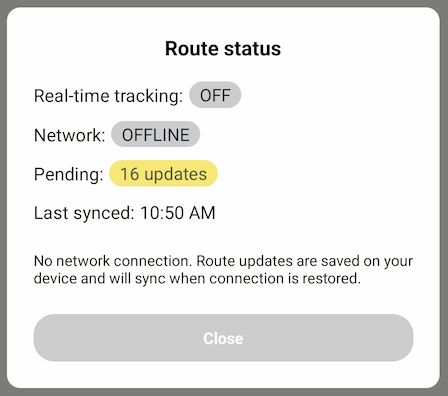
Tapping this indicator in either location will display the app's current network status, as well as a running count of any updates pending sync:
Once an active network connection is detected, the status indicator will switch to "syncing" mode - this will happen automatically, and no driver action is required to initiate a sync:
|
Route Header - Syncing: |
My Routes Homepage - Syncing: |
|
|
|
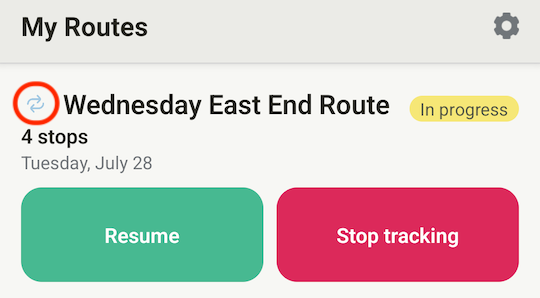
Tapping this indicator in either location will display the app's current online network status, last sync timestamp, and the "pending" queue decreasing in real time as each update is synced back to EasyRoutes:
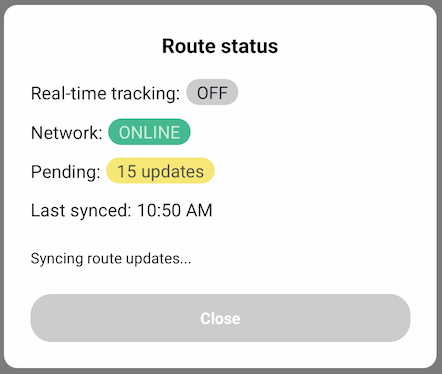
Pending updates will continue to sync until the queue is cleared, as long as the EasyRoutes Delivery Driver mobile app remains open and active. If the app is closed, any remaining updates will resume syncing once it is opened again, as long as the driver remains logged in and the device is still online.
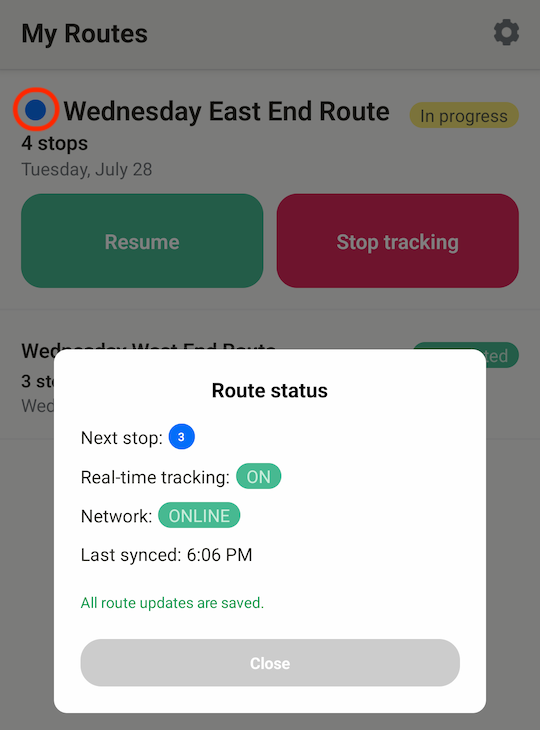
Once all updates are successfully synced, the route status indicator will switch to a blue dot if there are any stops on the route that have not yet been completed or attempted - tap this dot for quick access to the route's updated sync status, and a reference for which undelivered stop is next in the route:
Timestamps
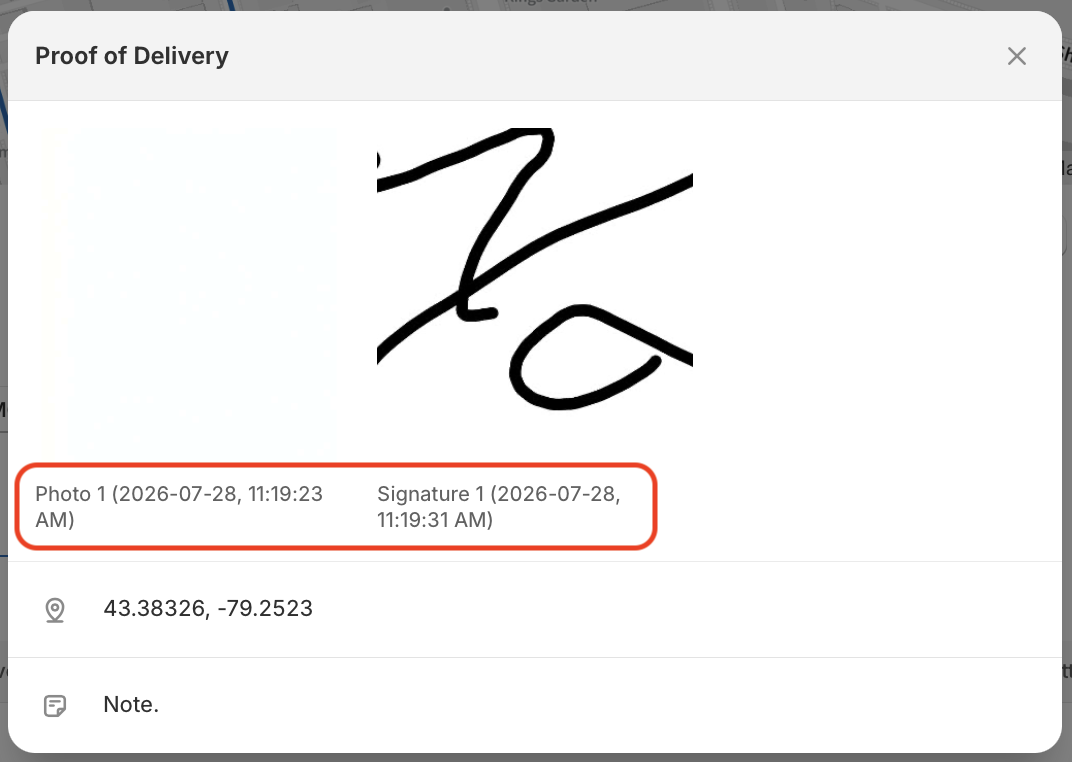
All updates made to routes and stops while offline are automatically saved with a precise timestamp when the action occurred on the mobile device, referencing the device's clock and time zone at that time. These timestamps will be associated with photo & eSignature captures, accessible from the Proof column when viewing any in progress or completed route:
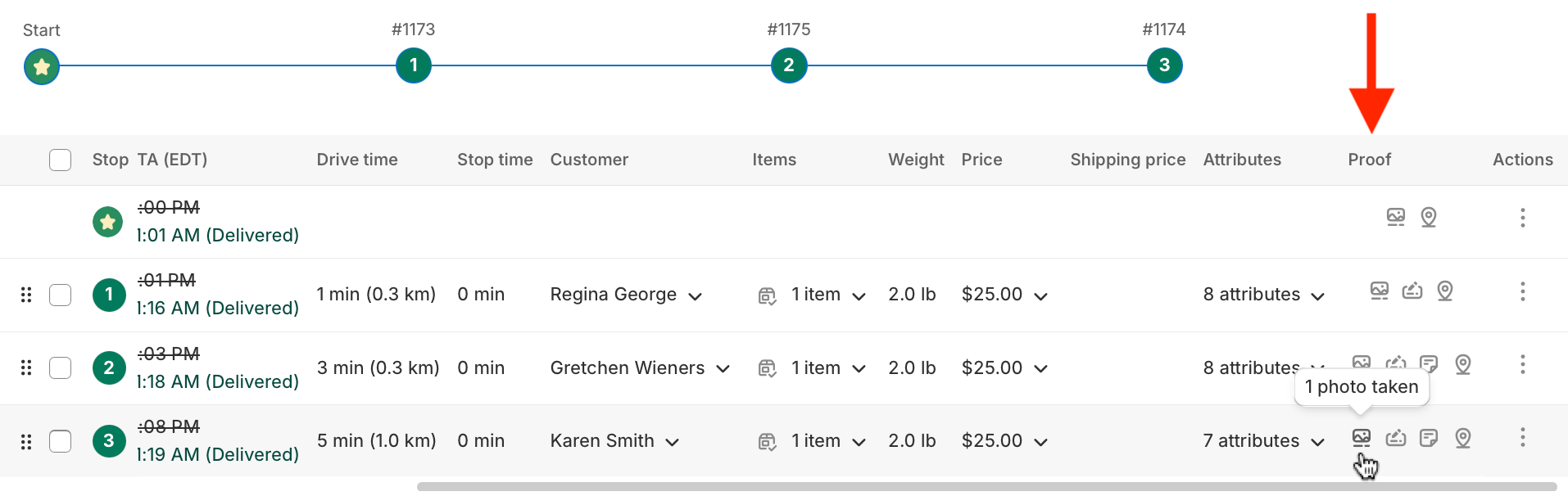
Click any proof type listed here for a summary of all proof uploads for a stop, including the timestamp of when each was captured while offline; the GPS location listed here (when available) will also reflect the driver's location when the stop's status was updated:
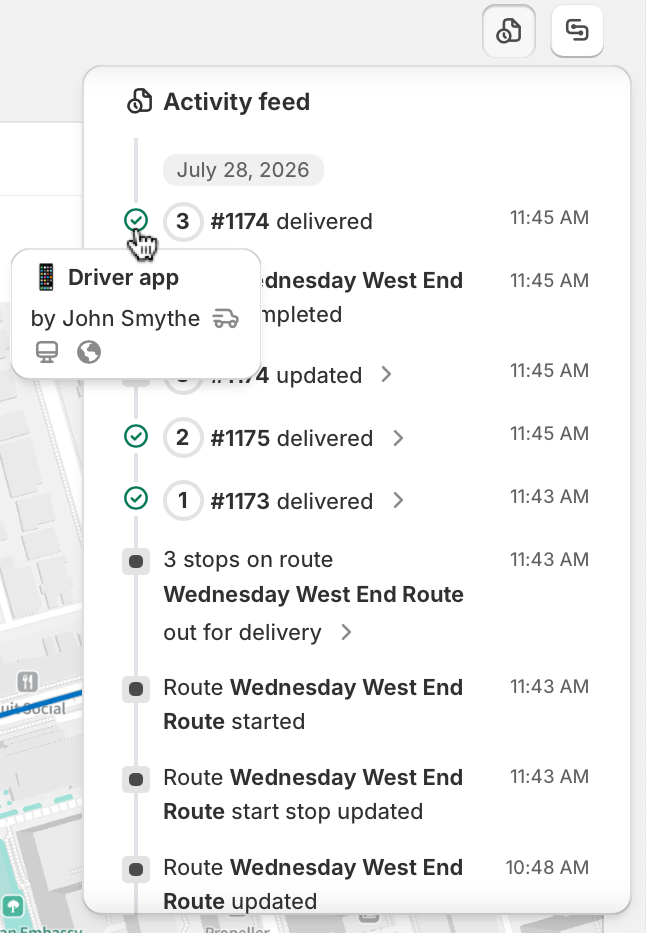
Timestamps for stop/route actions listed in individual route & EasyRoutes Dashboard activity feeds will reflect the time any offline updates were synced back to EasyRoutes, and will often appear in rapid succession after a route with many offline updates has finished syncing:
Customer Notifications & Tracking Pages
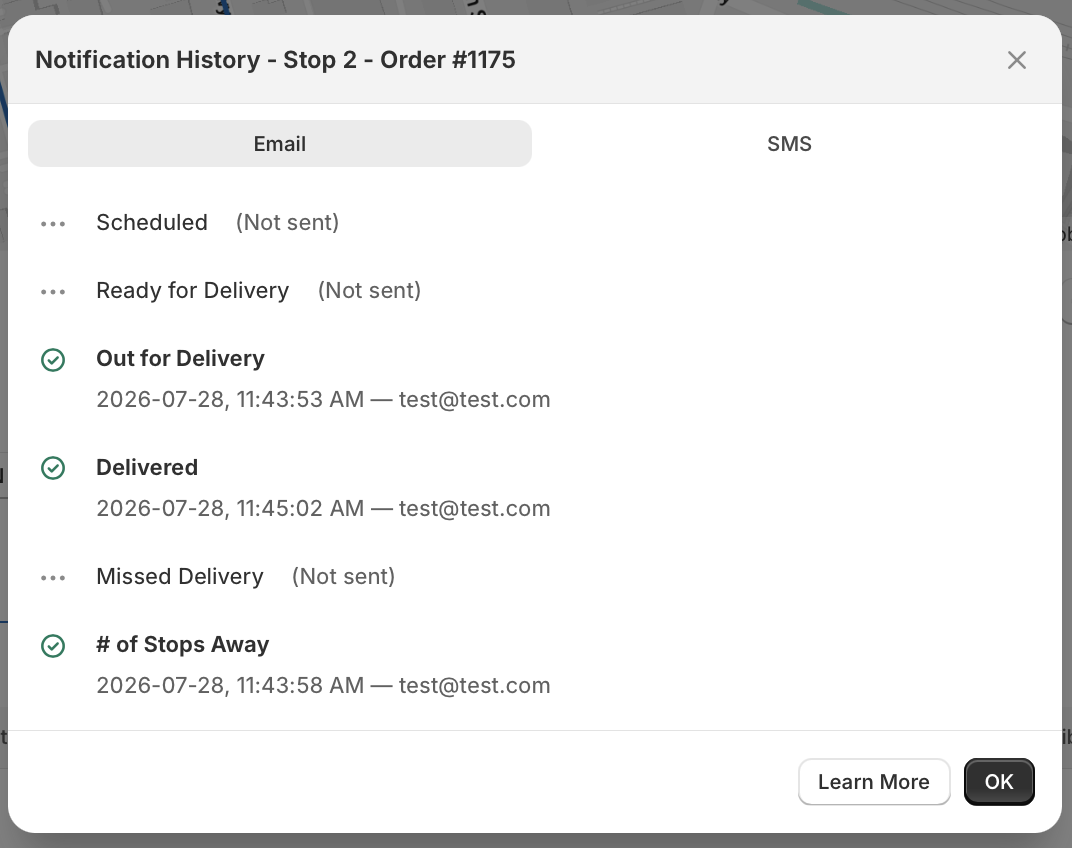
While offline, any actions/events that are configured to trigger a customer notification or update a stop's order tracking page are saved only on the mobile device, and not synced back to EasyRoutes until a network connection is available again. As a result, it's possible that multiple customer notifications may be sent in rapid succession - for example, if the Out for Delivery + Driver is X Stops Away + Delivered notification types are all enabled, these notifications will all send when their respective trigger update is synced (e.g. often within seconds of each other, as soon as the driver's device has an active connection, as shown in the example below).
To review the sequence and timing of any notifications for a stop, users can reference the notification history panel for any stop on an existing route; these timestamps indicate the time a notification was sent, and may differ from the time a stop's status was updated, depending on how long a driver has been offline:
If customer notifications and/or order tracking pages are configured to include the date/time a stop was marked as delivered or attempted, or the timestamp associated with any captured eSignatures, the timestamps used for either variable will reflect the time the action occurred on the mobile device. Note that, in cases where drivers remain offline for a long period after updating a stop's status or collecting an eSignature, these timestamp variables may be significantly earlier than any customer notification is sent, but will reflect the actual time any action was taken.