
How do I use DingDoong with EasyRoutes?

EasyRoutes is integrated with DingDoong Local Delivery Date Picker & Shopify
😤 Take the pain out of manual planning
🗓️ Create scheduled routes in seconds
How to optimize delivery routes based on Delivery Dates and Time Windows from DingDoong

Ensure the Time window and Delivery date columns are enabled (highlighted below); click the Done button when complete:

To view tags and attributes as columns for your orders:
- From your EasyRoutes Orders page, click the Configure table columns button found below your currently active Route Options (highlighted below):
- Scroll down to the bottom section of the dialog that appears. From here:
- Enable Order tags to display all order tags in a single column for each order.
- Enable Include customer tags to include applicable customer tags in this same column for each order.
- Enable Attributes to display all attributes in a single column for each order.
- Enable Attribute columns individually to display specific order attributes as standalone columns for each order:
- Enable Order tags to display all order tags in a single column for each order.

- Click the Done button once all required tags/attributes have been enabled - the Orders page will update to display selected columns.
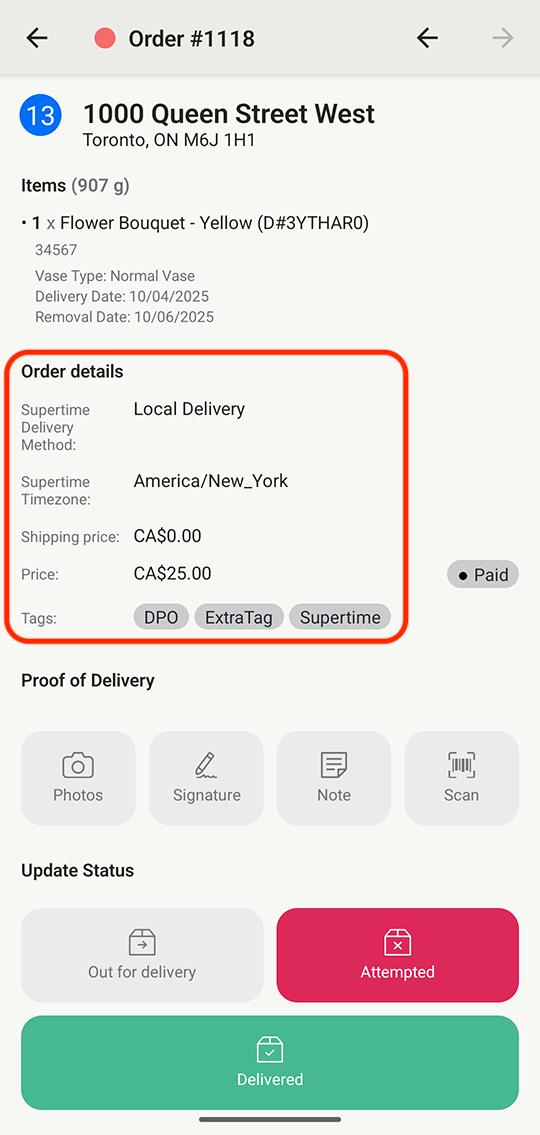
Additionally, to show DingDoong attributes to your drivers - you will need to enable showing the attributes column in your Route display options. This will also affect what gets shown for each stop on the driver app.
To view Order tags and Attributes inline for your orders, from your EasyRoutes Settings > Routes tab, ensure these two checkboxes are enabled from the Route display options section:

Once enabled, Order tags and Attributes will display as shown below for each stop within the mobile app:
About DingDoong
Struggling with wrong delivery dates, missed delivery times, or manual delivery requests? DingDoong offers flexible scheduling for local delivery slots, pickup, and shipping, tailored to your business hours. Easily integrate delivery dates & times into your cart, drawer, or product page to boost sales & cut support costs. Trusted by bakeries, florists, caterers, fresh food, and delivery-based services, DingDoong ensures a seamless experience for you & your customers while optimizing operations
- Add location-wise scheduled delivery dates or pickup time. Limit orders per day
- Set flexible cut-off for same day or pre-order local delivery date, pickup time
- Set lead time by business hours for local delivery, shipping, and store pickup.
- Manage local delivery by ZIP codes or maximum distance radius with date & time
- Seamless confirmation from cart to checkout & language translation date picker